
Shows your email to people, not bots. A free WordPress plugin that keeps email addresses out of your pages and reveals them only after a Cloudflare Turnstile check.
Spam bots visit websites and copy any email address they find, which is how inboxes fill up with junk mail. Antibot Email Shield stops that. Instead of showing your email on the page, it shows a Show email address button. When a real person clicks it and passes a quick check, the email appears, and it hides again after a few seconds.
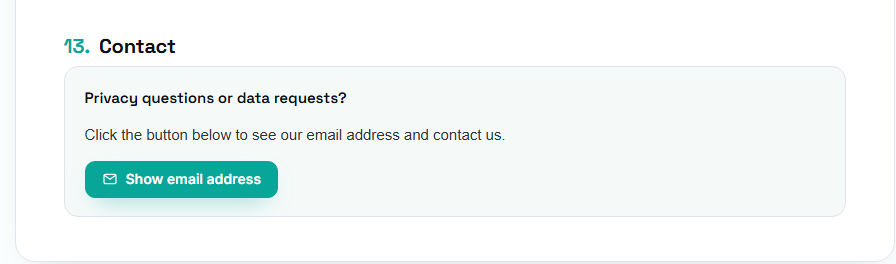
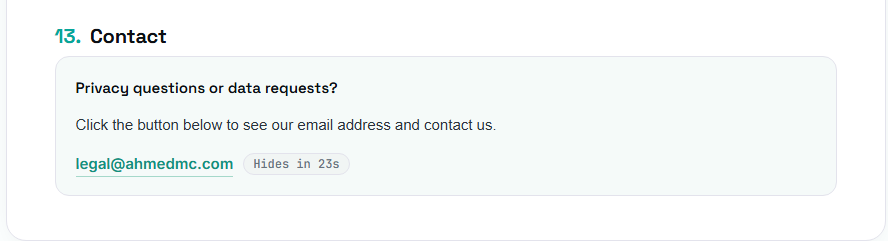
Setting it up takes about 10 minutes. Follow the steps in order, starting with Requirements.
Before you start, make sure you have:
support@yourdomain.com.yourdomain.com/wp-admin).antibot-email-shield.zip, and click Install Now.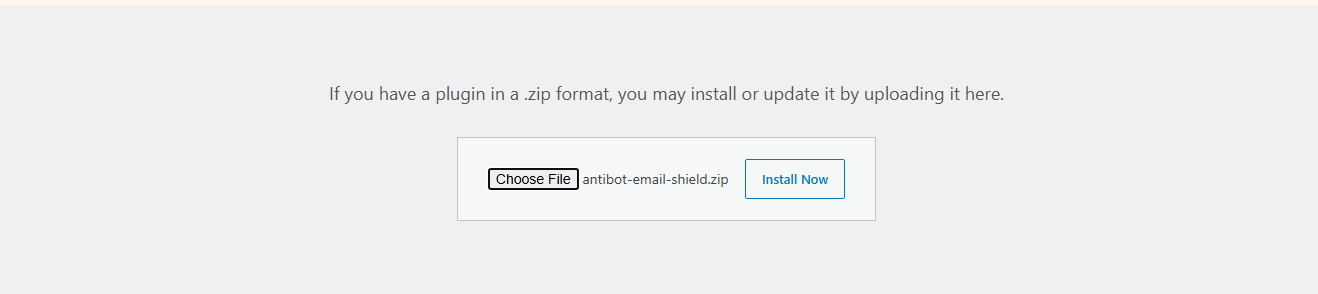
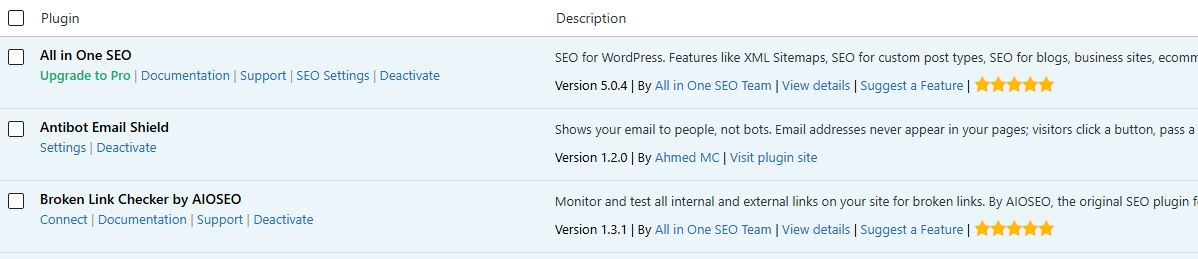
You'll now see Antibot Email Shield on your Plugins page, with a Settings link under its name. You can also find the settings any time under Settings → Antibot Email Shield.
Cloudflare Turnstile is the free check that tells people from bots. Most visitors never see a puzzle: it usually finishes on its own in a second or two. To use it, you need two keys from Cloudflare: a Site Key and a Secret Key.
Skip this if you already have one.
https://, for example yourdomain.com. If your website address starts with www, also add www.yourdomain.com.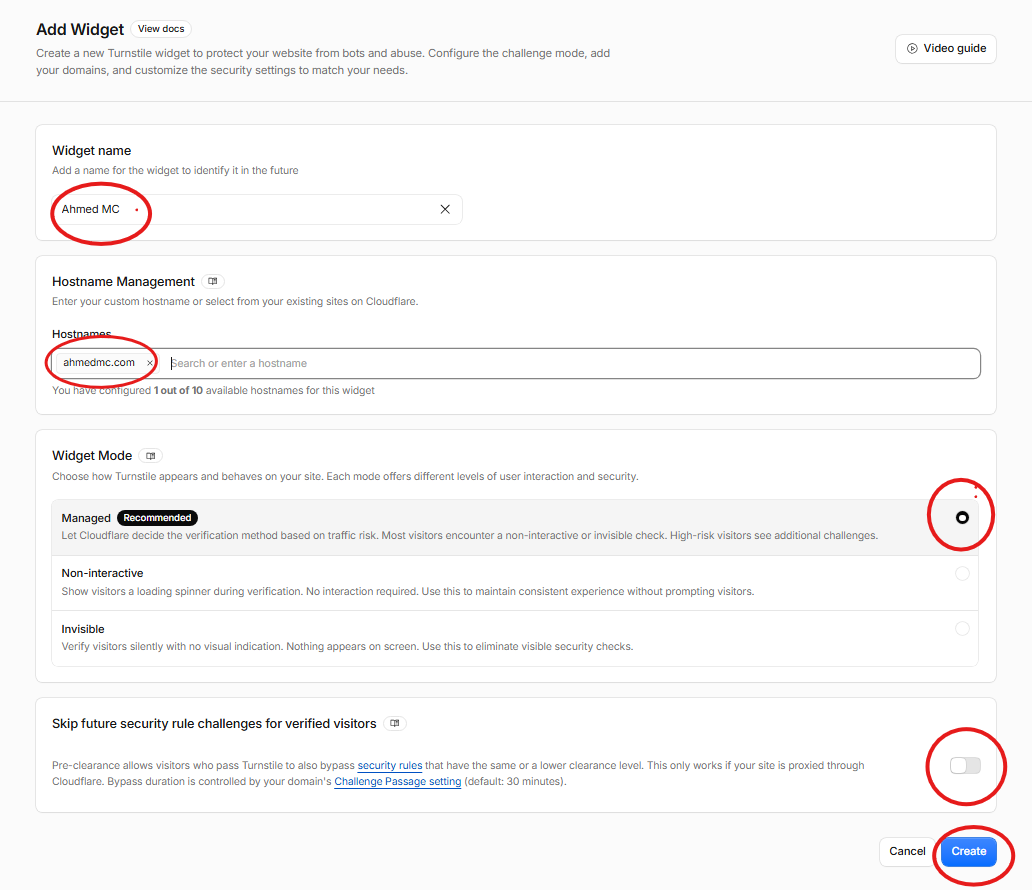
Cloudflare now shows your Site Key and Secret Key. Each has a copy button next to it. Keep this page open: you'll paste both keys into WordPress in the next step.
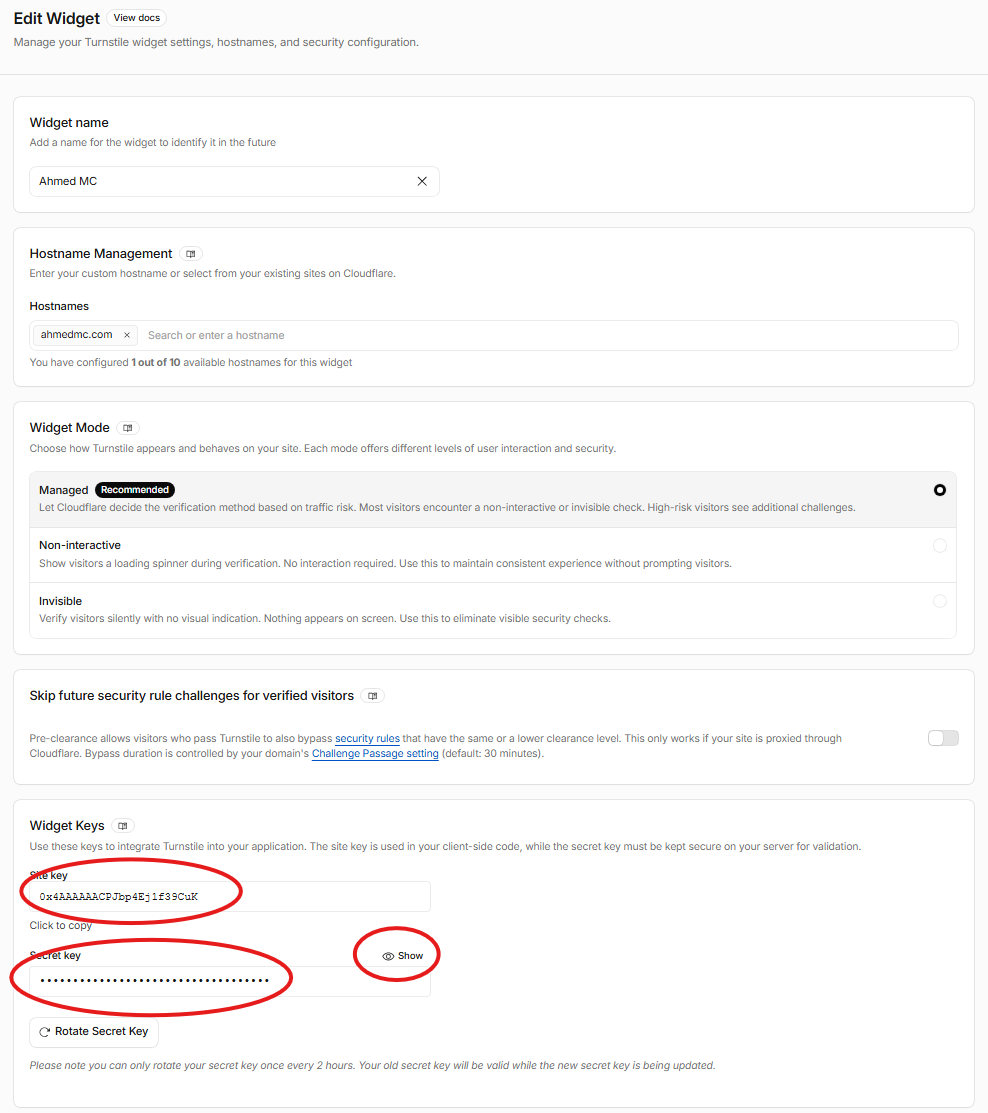
Want more detail? Cloudflare's own guide: Get started with Turnstile.

support@yourdomain.com
admin@yourdomain.com
The plugin gives each email a short name, called an id. The id is the part of the email before the @:
| Email you saved | Its id |
|---|---|
support@yourdomain.com | support |
admin@yourdomain.com | admin |
After saving, the settings page shows a Saved: list with each id next to its email, so you can check the ids before moving on.

help: support@yourdomain.com gives that email the id help.
A shortcode is a short piece of text in square brackets. When you add it to a page, WordPress replaces it with the Show email address button.
[email_shield id="support"]Change the id to match your email. The part inside the quotes must be the id of an email you saved in step 6:
| To show this email | Use this shortcode |
|---|---|
support@yourdomain.com | [email_shield id="support"] |
admin@yourdomain.com | [email_shield id="admin"] |
Only change the word inside the quotes. Keep the brackets, email_shield, id= and the quotes exactly as they are.
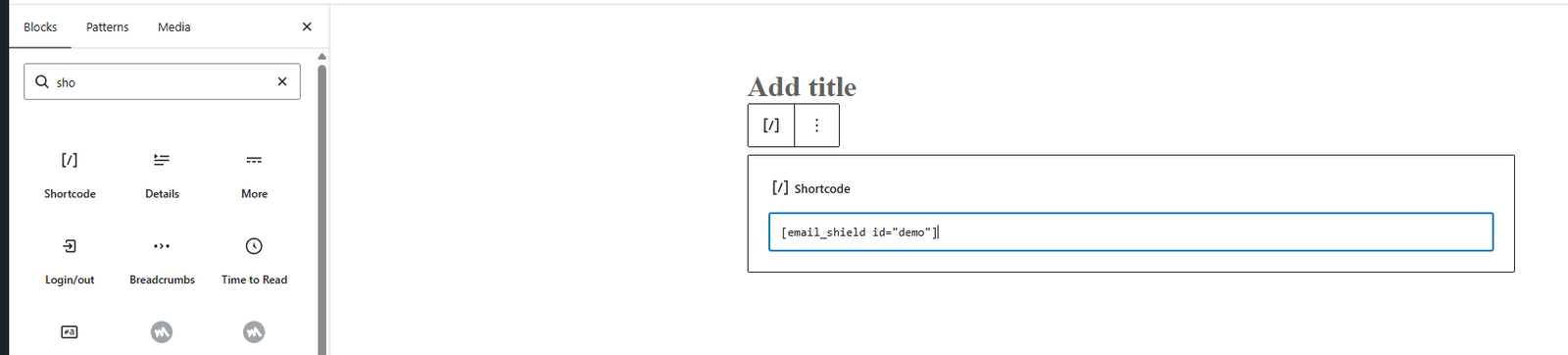
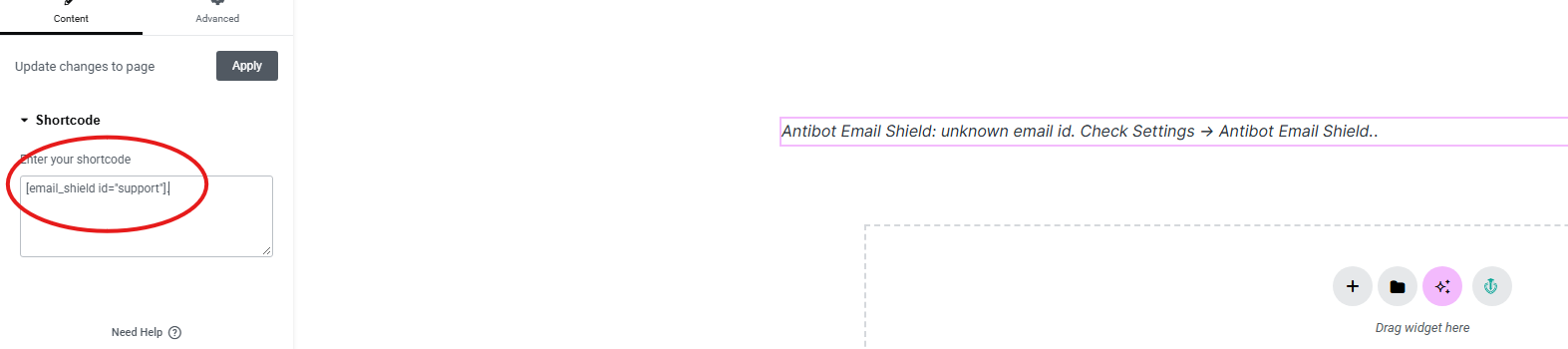
Now view the page. You'll see the Show email address button where you placed the shortcode. Click it to try it out.
These settings are optional. The defaults work well for most websites.
| Setting | Default | What it does |
|---|---|---|
| Hide again after | 25 seconds | How long the email stays visible. Set it to 0 to keep it visible. |
| Button label | Show email address | The text on every button. |
| Rate limit | 10 | How many times one visitor can reveal emails in 10 minutes. |
To change the text of just one button, add label to its shortcode:
[email_shield id="support" label="Email our support team"]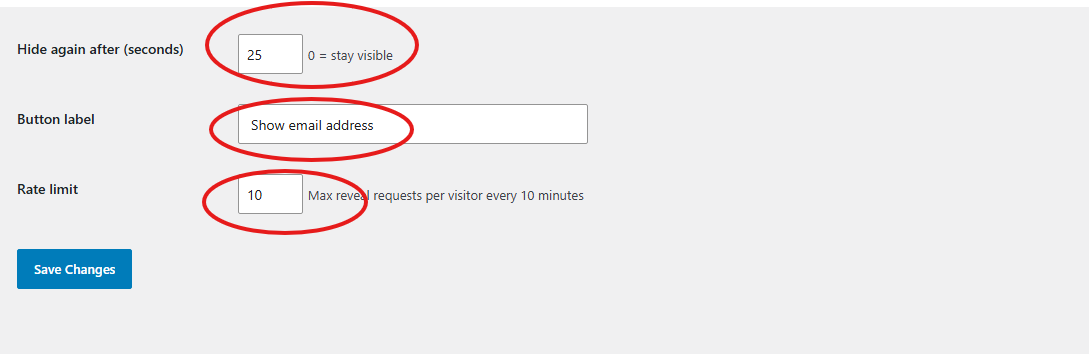
When a visitor clicks the button, Cloudflare Turnstile checks their browser to confirm they're human. It's good practice, and required in some countries, to tell your visitors. Copy this text into your privacy policy and adjust it if needed:
To protect email addresses on this site from spam bots, we use Cloudflare Turnstile.
When you choose to reveal an email address, Turnstile processes technical
information from your browser (such as your IP address and browser details)
to confirm you are a human. See Cloudflare's Turnstile privacy addendum:
https://www.cloudflare.com/turnstile-privacy-policy/Antibot Email Shield is a free plugin, developed by Ahmed MC.
If something doesn't work as expected, please let us know so it can be fixed. Click the button to see the email address:
To help fix it quickly, include:
